
Open a text DXF
Choose a 2D DXF exported from your CAD application, or try the sample drawing.
Bring 2D CAD outlines into your vector workflow. Confirm the drawing units, choose layers and download an SVG with explicit physical dimensions. Your file stays in this browser.
Drop a DXF drawing here or choose a file.
Text DXF up to 5 MB · 2D outlines · no server uploadYour SVG appears here after a supported DXF and its units are ready.
Outline SVG with dimensions in millimeters. Preview zoom does not change the exported size. Groups preserve layer names; CAD editing features are not retained.
Choose a 2D DXF exported from your CAD application, or try the sample drawing.
Check the drawing units and choose the visible layers you need. Review every unsupported-object notice before exporting.
Inspect the outline and physical dimensions, then download the SVG or copy its code. Check the scale again in your destination application.
DXF (Drawing Interchange Format) stores CAD entities such as lines, arcs and block references. SVG (Scalable Vector Graphics) describes vector artwork for browsers and design applications. This tool converts supported DXF outlines into SVG paths and groups; it does not preserve the full CAD document or editing model.
SVG is useful when your next tool expects vector artwork: a browser, Inkscape or a craft workflow. You can inspect outlines without a CAD editor and reuse them at different display sizes. For cutting, also check open paths, dimensions and the machine-specific settings.
These original DXF examples are rendered through the converter. The illustrations emphasize the outlines; download the source to test your own settings.
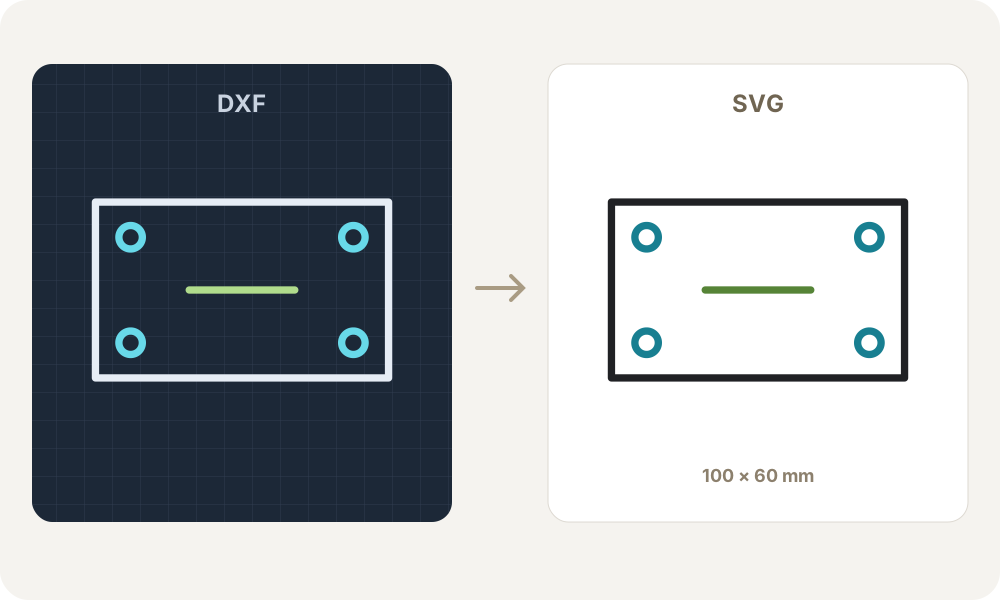
Keep a panel outline and its mounting holes together. Check the physical size and open paths in the cutting application before setting up a job.
Download DXF example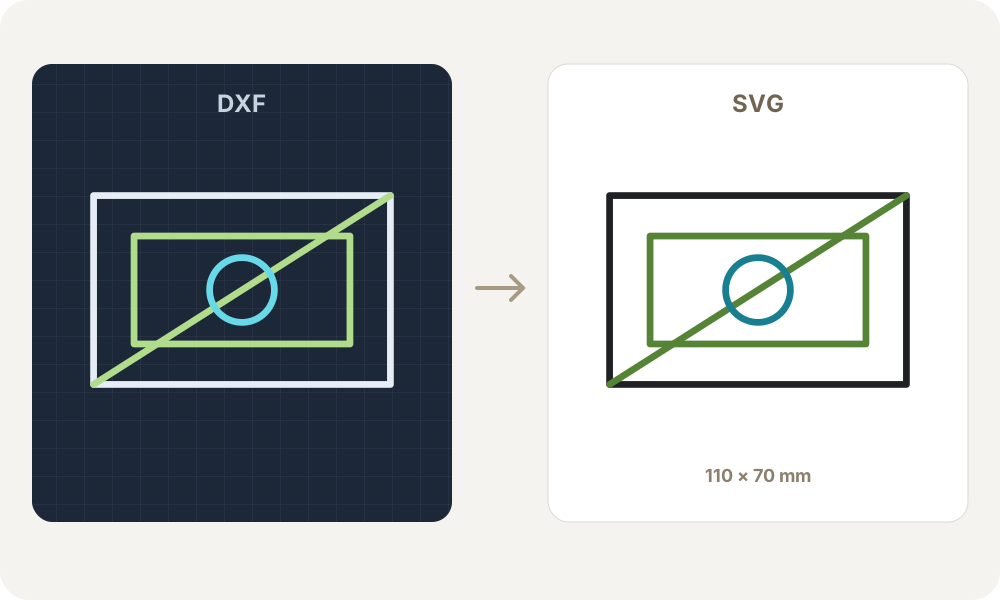
Export only the layers needed for a design task. SVG groups retain names, although individual applications may handle groups differently from CAD layers.
Download DXF example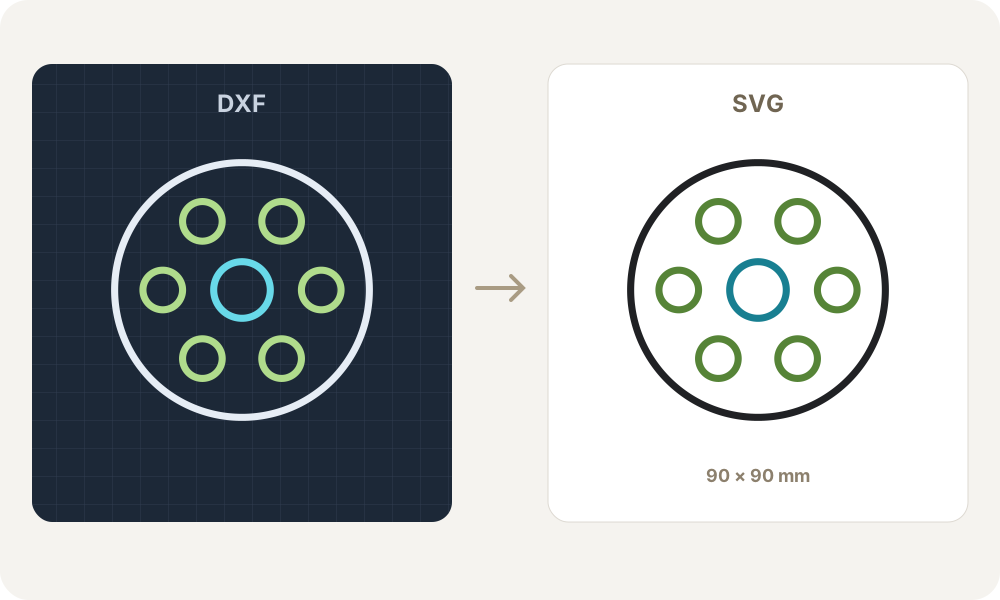
Reuse simple circular designs in a vector editor or on a website. Craft-software import and cutting results still depend on that application's interpretation and your chosen size.
Download DXF example| Drawing content | How it is handled |
|---|---|
| Lines, polylines and curves | LINE, 2D POLYLINE, LWPOLYLINE including bulge arcs, CIRCLE, ARC and ELLIPSE. Open and closed contours stay distinct. |
| Blocks and inserts | Supported objects inside bounded nested BLOCK/INSERT references, with base points, translation, rotation, scaling and mirroring. External references are excluded. |
| Units, layers and colors | Confirm mm, cm, m, in or ft. Choose visible modelspace layers and keep basic colors, or export dark outlines. Hidden and frozen layers are excluded. |
| Objects that need preparation | Text, hatches, dimensions, splines, wide polylines, 3D geometry and non-XY planes are not converted. Review the listed omissions or prepare those objects in CAD first. |
This is an outline converter, not a complete CAD renderer. It uses uniform fine strokes and does not reproduce CAD lineweights, fills, constraints or paper layouts.
Units, layers, compatibility and what to check after conversion.
DXF stores CAD entities and drawing structure. SVG stores vector graphics for browsers and design tools. Converting supported outlines does not preserve the full CAD document, constraints or editing history.
The converter uses the drawing unit you confirm and writes explicit millimeter dimensions into the SVG. Preview zoom does not resize the geometry. Verify a known measurement after import because the destination application can interpret SVG dimensions differently.
Some DXF files have no usable unit setting. The tool reads INSUNITS when available; otherwise you must choose the intended unit. Metric or imperial display settings alone cannot establish the physical length of the coordinates.
You can choose visible modelspace layers. Their names are stored as titles on SVG groups. These are SVG groups, so applications may not expose them as editable CAD layers. Hidden and frozen layers are excluded.
Supported circles, arcs, ellipses and polyline bulges are written as SVG arc geometry rather than a coarse screenshot or straight connecting lines. Unsupported spline entities are listed separately and require preparation in CAD.
Blocks can contain supported outline entities. The converter applies their base point, insertion position, rotation and scale, including mirroring and bounded nesting. Missing blocks, external references and unsupported objects are reported rather than silently omitted.
Those objects are outside this converter's supported outline set. Font-dependent text cannot be reliably turned into matching outlines without the original font. Convert the needed objects into supported geometry in CAD, then export the DXF again.
The drawing contains objects the tool cannot represent. Download stays unavailable until you exclude their layers or explicitly accept an SVG containing only supported objects. Read the omission list before using the result for cutting or production.
The output is a standard outline SVG intended for vector workflows. Check your application's import result, dimensions and open paths before cutting. Compatibility with every version of craft software or every machine has not been established.
Download the SVG and use it as an image, or copy its code into your page. The viewBox lets it scale for display. If using JSX, adapt SVG attribute names as needed. Display scaling does not change the dimensions recorded in the original download.
This page reads text DXF. DWG and binary DXF are rejected with a preparation hint. Export a text DXF from your CAD application first. Renaming a file extension does not convert its format.
The reader uses the DXF version and recognized code-page declarations to decode Unicode and older text files. If decoding fails, export a Unicode text DXF. Unsupported encodings are reported instead of quietly producing replacement characters.
Conversion is free, with no account or credits required. Parsing and SVG generation run in your browser. Confirmed direction switches use a temporary local handoff. If you opt in to a local draft, this browser saves one DXF and its settings for recovery within 24 hours; expired drafts are cleaned on your next visit. Disabling drafts or clearing the tool deletes the saved draft. File contents are not sent to a conversion server or put in URLs.
Text DXF input is limited to 5 MB. Group records, entities, expanded geometry, layers, nesting and SVG output are also bounded. Jobs stop after 20 seconds. A small but deeply nested drawing can exceed these budgets; split it or simplify it in CAD.
Use the direction link to open the other converter. If you choose the opposite file format, the tool asks before transferring it. If browser storage is blocked or unavailable, choose the file again on the other page. A round trip does not restore CAD features excluded in the first conversion.
You can keep basic entity and layer colors or choose dark outlines. Adaptive CAD white/black is shown as a dark outline. The output uses uniform fine strokes, no fills and no automatic path closure; CAD lineweights and complex linetypes are not reproduced.
Use the reverse converter to turn vector artwork into DXF outlines for CAD and cutting workflows.