
Choose or paste an image
Add a PNG, JPG/JPEG or static WebP. You can choose a file, drag one in, or paste an image from your clipboard. Convert one image at a time, up to 10 MB and 16 megapixels.
Convert PNG, JPG/JPEG and WebP logos, icons or drawings into SVG paths. Download a file or copy SVG code for free. Photos are simplified; existing backgrounds are kept.
Choose a PNG, JPG, JPEG or static WebP, drag one here, or paste an image from your clipboard.
PNG · JPG/JPEG · WebP · Up to 10 MB and 16 megapixelsYour vector preview will appear here after conversion.
Copying and downloading give you the same SVG. Choose “Continue editing” to make changes.
Large images are resized to a working size of up to 768 px before tracing. The SVG keeps the original proportions, up to 4,096 px per side. Colors, details and partly transparent edges may change.
WebP to SVGWorking with PNG? Open PNG to SVGWorking with JPG/JPEG? Open JPG to SVG
Compare this lossless, two-color WebP with the real SVG produced by this converter. Zoom into the same edge to inspect the difference; the existing transparent background is preserved.
Zoom into the same edge in both files. Tracing preserves the overall appearance while simplifying pixels into paths.
A fixed grid of pixels.
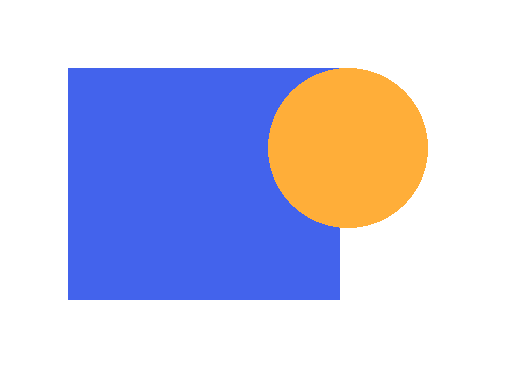
512 × 384 px · 0.4 KB
Scalable paths with editable colors.

2 paths · 0.6 KB
Made with Color, 16 colors, Balanced detail and Light small-detail removal. PNG can also start with transparency; JPG cannot. Painted backgrounds remain, and partly transparent edges may change during tracing.
Download sample WebPDownload this SVG
Add your image, check the preview, and save the result.
Add a PNG, JPG/JPEG or static WebP. You can choose a file, drag one in, or paste an image from your clipboard. Convert one image at a time, up to 10 MB and 16 megapixels.
Compare the vector preview with your original. Adjust colors, detail and small-detail removal. Check thin lines, lettering and transparent edges before saving.
Download the SVG file or copy the same vector code. Continue editing, inspect the result in the Viewer, or export a PDF without uploading your image to a conversion server.
Logos, icons and simple drawings with clear edges and a few solid colors work best. Use the clearest original available. Photos, gradients and shadows become simplified regions of color. Tracing cannot restore detail lost to blur or compression.
The image is redrawn as SVG paths, not embedded as a raster image inside an SVG wrapper. You can resize those paths, adjust their colors and edit the code. Lettering becomes outlines rather than editable text.
The default settings are a good starting point. Adjust them to suit your image using the suggestions below.
Start with 4 or 8 colors for a simple logo, or use 16 or 32 if distinct colors merge. Check edges and the spaces inside letters. More colors can preserve shading but may also create a larger SVG.
For dark drawings on a light or transparent background, try Black & white. Choose Detailed and Keep all if small dots or thin lines disappear. The result follows the outlines; it does not recreate the original pen strokes.
Large images are reduced to a working size of up to 768 px on the longest side. Crop around your design in an image editor first when fine detail matters. Zoom in on small lettering; for exact text, use the original font or vector artwork.
If the preview doesn’t look right, try the adjustment that matches what you see.
Increase the color count if distinct colors merge. Try Detailed for rough contours or Keep all for missing dots. For JPEG compression speckles, try fewer colors and stronger small-detail removal, checking that important marks remain.
Transparency can be kept when the source PNG or WebP already has it. A white or colored background is traced into the SVG too; JPG does not contain transparency. The preview background control does not erase anything. Remove unwanted backgrounds in an image editor first.
Photos and many tiny details can require lots of vector paths. Try fewer colors, Simplified detail or stronger small-detail removal. Compare the preview before saving; a vector file is not always smaller than the source image.
PNG, JPG/JPEG and static WebP are supported. Both .jpg and .jpeg use the same JPEG format. Animated PNG, animated WebP, GIF, BMP, TIFF and HEIC are not supported in this tool.
Yes. Preview, adjust, copy SVG code and download SVG files for free, with no watermark or account required. AI generation and AI editing elsewhere on the site are separate features.
Real vector paths. The tool traces the picture into shapes rather than placing a PNG, JPEG or WebP inside an SVG wrapper. The SVG file and copied code contain the same artwork.
Yes, when a PNG or WebP already has transparency. Partly transparent edges may change slightly. JPG backgrounds and painted backgrounds stay in the output. Changing the preview background does not remove them.
Photos can be traced, but become a stylized image with fewer colors. Logos and simple artwork usually work better. Small lettering may change, and text becomes vector outlines, not editable font text.
Check the actual format and the limits: 10 MB, 8,192 px per side and 16 megapixels total. Animated inputs are not accepted. For an overly complex result, try fewer colors, Simplified detail or stronger small-detail removal.
No. Image decoding, tracing, preview and export happen in your browser. Your picture and SVG are not sent to a conversion server. You can also copy the code without creating an account.
A detailed picture may require many vector paths, while a raster image can be highly compressed. Try fewer colors or Simplified detail. For photographs, keeping the original raster format may be more practical.
Choose a PNG, JPG/JPEG or static WebP and compare the vector result.
Convert an image