
Choose your JPG
Choose a .jpg or .jpeg file, or drag it into the converter. Convert one image at a time, up to 10 MB and 16 megapixels.
Convert JPG and JPEG logos, icons and drawings into SVG paths. Preview, adjust and download for free. Photos are simplified into color shapes; backgrounds are kept.
Choose a .jpg or .jpeg file, or drag one here.
JPG / JPEG up to 10 MB · 16 megapixelsYour vector preview will appear here after conversion.
Copying and downloading give you the same SVG. Choose “Continue editing” to make changes.
Large images are resized to a working size of up to 768 px before tracing. The SVG keeps the original proportions, up to 4,096 px per side. Colors and details may change; JPEG backgrounds are kept.
Have a PNG? Use PNG to SVGNeed JPG output? Use SVG to JPG
Compare this JPEG logo with the SVG produced by this converter. The cream background stays in the artwork; converting does not remove it.
Zoom into the same edge in both files. Tracing preserves the overall appearance while simplifying pixels into paths.
A fixed grid of pixels.
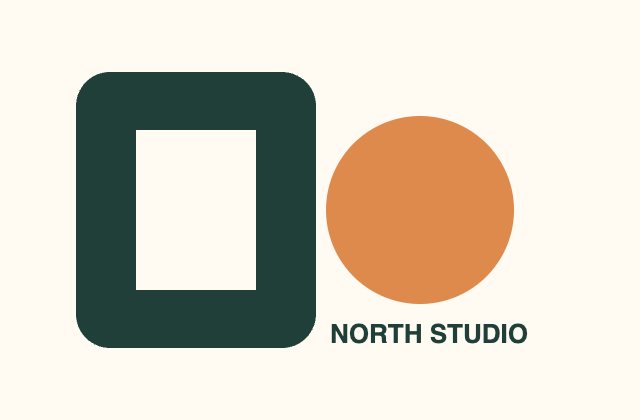
640 × 420 px · 10.4 KB
Scalable paths with editable colors.

3 paths · 3.4 KB
Made with Color, 16 colors, Balanced detail and Light small-detail removal. Compare lettering and curved edges at a larger size. JPEG compression marks can become paths, and letters become outlines. Your results depend on the source image.
Download sample JPGDownload this SVG
Add your image, check the preview, and save the result.
Choose a .jpg or .jpeg file, or drag it into the converter. Convert one image at a time, up to 10 MB and 16 megapixels.
Compare the preview with your original. Zoom in on small letters and thin lines, then adjust the settings if anything looks off.
Download the SVG or copy its code. Choose Continue editing to make changes, or open the result in the SVG Viewer.
Use a clear logo, icon or drawing with a few solid colors. JPEG compression can leave speckles and halos around edges; start from the highest-quality original you have. Photos, gradients and shadows become simplified regions of color, and small lettering may change.
The SVG contains traced vector paths, with no embedded JPG. Lettering becomes outlines rather than editable text, and the JPG background remains part of the artwork. Use Continue editing to adjust paths or colors before another export.
The default settings are a good starting point. Adjust them to suit your image using the suggestions below.
Start with 4 or 8 colors for a simple logo. Increase the count if distinct colors merge. JPEG compression can introduce extra shades around edges; fewer colors can help simplify them. Check the spaces inside letters before saving.
For dark drawings on a light background, try Black & white. Use Detailed and Keep all if thin lines disappear. Noise filtering can remove compression speckles, but may also remove small dots. The result follows outlines rather than recreating pen strokes.
Zoom in on lettering before saving. Large images are reduced to a working size of up to 768 px on the longest side. Crop around your design in an image editor first to give it more working pixels. Tracing does not restore detail lost to blur or JPEG compression, and text becomes paths rather than editable font text.
If the preview doesn’t look right, try the adjustment that matches what you see.
JPEG compression can create small marks and extra colors. Try fewer colors and stronger small-detail removal, then compare the result. Return to Light or Keep all if important dots or thin lines disappear. A better-quality original usually helps more than increasing detail.
JPG does not store transparency. A white or colored background is traced into the SVG along with the design. The preview background control does not erase it. Remove the background in an image editor first, then use PNG to SVG for a transparent source.
Many colors and small details can make an SVG larger than the original JPG. Try fewer colors, “Simplified” detail or stronger filtering, while checking that important details remain. For photos, JPG may be the better format.
Yes. You can convert images, preview the result, copy the code and download files for free. No account is needed, and we do not add a watermark.
Yes. Files ending in .jpg or .jpeg use the same JPEG format and follow the same conversion process. Upload either extension; the downloaded file ends in .svg.
Yes. The image is traced into SVG paths rather than embedded as a JPEG inside an SVG wrapper. You can inspect or copy the SVG code and open the file in a vector editor. Tracing can change colors and details.
Not always. The converter redraws pixels as vector paths and reduces the image to a limited palette. Simple logos and drawings usually work best. Photos, shadows and gradients become simplified color regions. Check the preview before downloading.
No. JPEG images do not contain transparency, so their backgrounds are traced too. Changing the preview background does not remove them. For a transparent result, remove the background first, save a transparent PNG and use PNG to SVG.
A compressed JPEG can be much smaller than the many paths needed to describe a detailed image. Try fewer colors, Simplified detail or stronger small-detail removal, and compare the preview before saving.
Check that your file is a valid JPG or JPEG within 10 MB, 8,192 px per side and 16 megapixels in total. If tracing fails, try fewer colors, Simplified detail or stronger small-detail removal. Crop unnecessary content and check that important parts remain in the preview.
No. Your image is converted in your browser. Neither the JPG nor the SVG is sent to a conversion server.
Choose an image and see how it looks as an SVG.
Convert a JPG